Monday, 16 September 2019

Send MIME emails (HTML Email body + Attachments) from OSB using UMS Adapter

Hi Guys,

Here I am trying to explain how to send MIME (Multipurpose Internet Mail Extensions) emails from Oracle Service Bus 12c using UMS adapter having HTML email body Content and one or more Attachments.


I am assuming you are able to send simple emails from OSB, this requires some configurations. There are many blogs available on this topic. You can refer below blogs if Needed for basic setup:

1.  https://blog.sysco.no/osb/messaging/UMS_Adapter_send_email_OSB_12C/

2.  http://blog.sysco.no/osb/messaging/UMS_Adapter_send_html_content_email_OSB_12C/


The main purpose of this blog is to highlight usage of MIME or multipart/mixed emails which can have email body with attachments.
A Sample emails like below:


STEPS to Achieve this in OSB:

This assumes, you have a working OSB project which is able to send emails. (You can Refer above blogs for this purpose)

Assuming you have transformed the message required for your scenario, which is available in below format before request reaches the Routing node in OSB Pipeline.

<tns:EmailPayload  xmlns:tns="http://www.dheerajOSB.com">
<tns:To/>
<tns:Subject>POC| POC| NOTIFICATION | 2019-09-14T06:14:35.266-04:00</tns:Subject>
<MailBody>
<html>
<body>
<table  border="1" bordercolor="grey">
<tr>
<td  colspan="2" style="background-color:#33339F;color:white">
<Center>
<b>NOTIFICATION DETAILS</b>
</Center>
</td>
</tr>
<tr>
<td  style="background-color:#33339F;color:white">INTERFACE NAME</td>
<td/>
</tr>
<tr>
<td  style="background-color:#33339F;color:white">ERROR DESCRIPTION</td>
<td>This is custom fault</td>
</tr>
</table>
</body>
</html>
</MailBody>
</tns:EmailPayload>


1. Below actions are required in OSB pipeline to achieve this. There may be other actions in your pipeline as well for purpose of audit/logging/invocations etc.


Transport Header Action:


Java Callout Action:


fn:concat('--MIME_Boundary 
Content-type: text/html; charset="utf-8" 

',fn-bea:serialize($varUMSPayload//*:MailBody/*),'
--MIME_Boundary 
Content-type: text/html; charset="utf-8" 
Content-Disposition: attachment; filename=payload.txt;

',fn-bea:serialize($body//*:XMLPayload),'
--MIME_Boundary-- 


' )


Replace Action:


<ref:message xmlns:opaq="http://xmlns.oracle.com/pcbpel/adapter/opaque/" 
xmlns:ref="http://platform.integration.oracle/blocks/adapter/fw/metadata/ref_UMS_Notification">
    <opaq:opaqueElement>{$varBase64}</opaq:opaqueElement>

   </ref:message>


Business Service tracing Logs for debugging:

[2019-09-16T06:44:18.466-04:00] [osb_server1] [NOTIFICATION] [OSB-398202] [oracle.osb.resources.service.service] [tid: [ACTIVE].ExecuteThread: '9' for queue: 'weblogic.kernel.Default (self-tuning)'] [userId: <anonymous>] [ecid: 76bae70b-d533-4893-adda-a0d78240273b-0005e2b6,1:40787] [APP: Service Bus Routing] [FlowId: 0000Motf5J0Fw025zrH7iW1TU^G70004HD] [[
 [OSB Tracing] Outbound request was sent.

 Service Ref = DheerajOSB/BusinessServices/ref_UMS_Notification
 URI = jca://eis/ums/UMSAdapterOutbound
 Request metadata =
    <xml-fragment>
      <tran:headers xsi:type="jca:JCARequestHeadersXML" xmlns:jca="http://www.bea.com/wli/sb/transports/jca" xmlns:tran="http://www.bea.com/wli/sb/transports" xmlns:xsi="http://www.w3.org/2001/XMLSchema-instance">
        <jca:SOAPAction>"SendNotification"</jca:SOAPAction>
        <jca:Content-Type>text/xml; charset=utf-8</jca:Content-Type>
        <jca:jca.ums.to>dheexxxxxxhra@gmail.com</jca:jca.ums.to>
        <jca:jca.ums.subject>POC | OSBSample2 | NOTIFICATION | 2019-09-16T06:44:18.236-04:00</jca:jca.ums.subject>
        <jca:jca.ums.msg.content-type>multipart/mixed;boundary="MIME_Boundary"</jca:jca.ums.msg.content-type>
        <jca:jca.ums.msg.content-transfer-encoding>7bit</jca:jca.ums.msg.content-transfer-encoding>
        <jca:jca.ums.part.content-transfer-encoding>7bit</jca:jca.ums.part.content-transfer-encoding>
      </tran:headers>
      <tran:encoding xmlns:tran="http://www.bea.com/wli/sb/transports">utf-8</tran:encoding>
    </xml-fragment>
 Payload =
<?xml version="1.0" encoding="UTF-8"?>
<soapenv:Envelope xmlns:soapenv="http://schemas.xmlsoap.org/soap/envelope/"><soapenv:Body><ref:message xmlns:opaq="http://xmlns.oracle.com/pcbpel/adapter/opaque/" xmlns:ref="http://platform.integration.oracle/blocks/adapter/fw/metadata/ref_UMS_Notification"><opaq:opaqueElement>LS1NSU1FX0JvdW5kYXJ5IApDb250ZW50LXR5cGU6IHRleHQvaHRtbDsgY2hhcnNldD0idXRmLTgi+Ci0tTUlNRV9Cb3VuZGFyeS0tIAoKCg==</opaq:opaqueElement></ref:message></soapenv:Body></soapenv:Envelope>

]]
[2019-09-16T06:44:18.506-04:00] [osb_server1] [NOTIFICATION] [OSB-398203] [oracle.osb.resources.service.service] [tid: [ACTIVE].ExecuteThread: '21' for queue: 'weblogic.kernel.Default (self-tuning)'] [userId: <anonymous>] [ecid: 76bae70b-d533-4893-adda-a0d78240273b-0005e2b6,1:40787:14] [APP: Service Bus JCA Transport Provider] [FlowId: 0000Motf5J0Fw025zrH7iW1TU^G70004HD] [[
 [OSB Tracing] Outbound response was received.

 Service Ref = DheerajOSB/BusinessServices/ref_UMS_Notification
 URI = jca://eis/ums/UMSAdapterOutbound
 Message ID = a008016.2736342f.5.16d25a4109a.N7a1b
 Response metadata =
 <xml-fragment>
   <tran:headers xsi:type="jca:JCAResponseHeadersXML" xmlns:jca="http://www.bea.com/wli/sb/transports/jca" xmlns:tran="http://www.bea.com/wli/sb/transports" xmlns:xsi="http://www.w3.org/2001/XMLSchema-instance"/>
   <tran:response-code xmlns:tran="http://www.bea.com/wli/sb/transports">0</tran:response-code>
 </xml-fragment>
 Payload =


]]

Wednesday, 27 December 2017

BPEL - Dynamic XSLT file selection and multiple inputs to XSLT

Hey guys,


In this post, I am explaining the steps to Dynamically select the XSLT files in BPEL process and pass on the multiple parameters to XSLT file as input.

This will need below implementation at High level :
1. DVM Lookup for dynamic XSLT file selection
2. Use of  ora:processXSLT() function to process XSLT and assign result to variable.


Implementations Steps :

1. Create SOA project, with BPEL process
2. Add the services and reference as per requirement
3. In the BPEL process, use assign to lookup DVM for XSLT file name.
4. Use another assign to execute the ora:processXSLT() function and assign result to variable.

Things to keep in mind while implementing ora:processXSLT() :

XSLT is processed in BPEL using the method: ora:processXSLT categorized under BPEL XPath Extension Functions.
The input parameters (signature) for the method is as defined by Oracle:

Signature:

processXSLT('template','input','properties/parameter'?)

Arguments definition:

template - The XSLT template or XSLT file Name with location (If using files from MDS)

input - The input data to be transformed

properties - This is optional. Additional inputs or parameters as defined in XSLT files.


e.g. ora:processXSLT('Transform_data.xsl', $inputVariable.body, bpws:getVariableData('metaDataVar'))

However, in our case, we are looking to dynamically select the XSLT file from DVM lookup, so the example will be like this

ora:processXSLT($xsltLocVar, $inputVariable.body, bpws:getVariableData('metaDataVar'))

Here Variable xsltLocVar already has XSLT file name fetched from DVM lookup.


The properties/parameter translated into parameter constructs of the XSLT and can be referenced within the XSLT scope. The property needs to be defined in a specific structure as mentioned below -


The definition of the schema contains for the following details:

<?xml version="1.0" encoding="windows-1252"?>
<xsd:schema xmlns:xsd="http://www.w3.org/2001/XMLSchema" xmlns:p="http://schemas.oracle.com/service/bpel/common" xmlns="http://schemas.oracle.com/service/bpel/common" targetNamespace="http://schemas.oracle.com/service/bpel/common" elementFormDefault="qualified">
<xsd:element name="parameters">
<xsd:complexType>
<xsd:sequence>
<xsd:element name="item" minOccurs="1" maxOccurs="unbounded">
<xsd:complexType>
<xsd:sequence>
<xsd:element name="name" type="xsd:string"/>
<xsd:element name="value" type="xsd:string"/>
</xsd:sequence>
</xsd:complexType>
</xsd:element>
</xsd:sequence>
</xsd:complexType>
</xsd:element>
</xsd:schema>


Consider this schema structure for any variable.
A variable will always have a name and a value. eg. a variable x = 100. In case the name of the variable is "x" and the value is "100".

So the parameter variable needs to be set for all the variables which needs to be passed to the XSLT.

Define the XSD in your BPEL project. Create a variable of type global in the BPEL project with name "metaDataVar" (the name can be anything)

Lets assume, in one variable "user" we have the username and in another variable "password" we have the password for an account stored. The final payload needs to be constructed which should have both the values.

In your BPEL, create a copy operation and provide an expression to the "name" element of the variable "params". May be use the expression builder to assign a value of "userName" to the element "name".

Similarly assign "passValue" to the element "name" of the "params" variable and the xpath expression to the value to instantiate the value of the params element.

Now, come down to the XSLT where these elements needs to be accessed. Use XSLT construct to define the param as depicted below:

<xsl:param name="userName"/>
<xsl:param name="passValue"/>

Now the values of the variables can be accessed using a simple expression "$userName" and "$passValue"

Friday, 13 October 2017

Get Set Properties in BPEL header / Passing Properties from 1 BPEL and receiving in another BPEL using header

Hi Guys,

I am writing this post, because one day, I wanted to pass few properties from my bpel, which I needed in 2nd bpel process. I coudn't find any blogs with full details. There were many with partial details about how to do it.


Use Case :
Properties of 1st bpel needs to be passed to 2nd bpel. These could be timestamp, any unique ID genrated in bpel 1, or File name or location in case of file/ftp adapter service etc.


Implementation :
There could be many ways, how you do this, however one of the simplest way to achieve this is using the properties. High level steps :
1. Add the properties while invoking the reference Paternelink
2. Fetch the properties from received payload.

Note : The Syntax is different for bpel 1.1 and bpel 2.0, Most blogs has this for bpel 1.1 in their posts. This post is based on bpel 2.0


STEP 1 :
Add properties in your Invoke.


Source code view--


STEP 2:
Add properties in your receive activity of 2nd bpel


 Source code view--


Thats all.


Testing, screens from the Flow trace.

1st bpel invoke --


2nd bpel receive --


It is not only INVOKE and RECEIVE activities where you can use , but others supported activities are listed below with their format:

BPEL 2.0 bpelx Extensions Syntax
The following example shows bpelx extensions syntax in BPEL 2.0:
<invoke ...>
  <bpelx:fromProperties>?
    <bpelx:fromProperty name="NCName" .../>+
  </bpelx:fromProperties>
  <bpelx:toProperties>?
    <bpelx:toProperty name="NCName" .../>+
  </bpelx:toProperties>
</invoke>

<receive ...>
  <bpelx:fromProperties>?
    <bpelx:fromProperty name="NCName" .../>+
  </bpelx:toProperties>
</receive>

<onEvent ...>
  <bpelx:fromProperties>?
    <bpelx:fromProperty name="NCName" .../>+
  </bpelx:fromProperties>
</onEvent>

<reply...>
  <bpelx:toProperties>?
    <bpelx:toProperty name="NCName" .../>+
  </bpelx:toProperties>
</reply>

<reply ...>
  <bpelx:toProperties>
    <bpelx:toProperty name="NCName" .../>
  </bpelx:toProperties>
</reply>
Note the following details:
  • The toProperty is a from-spec. This copies a value from the from-spec to the property of the given name.
  • The fromProperty is a to-spec. This copies a value from the property to the to-spec.


BPEL 1.1 bpelx Extensions Syntax

The following example shows bpelx extensions syntax in BPEL 1.1:
<invoke ...>
  <bpelx:inputProperty name="NCName" expression="string" variable="NCName"
 part="NCName" query="string"/>*
  <bpelx:outputProperty name="NCName" expression="string" variable="NCName"
 part="NCName" query="string"/>*
</invoke>

<receive ...>
  <bpelx:property name="NCName" expression="string" variable="NCName"
 part="NCName" query="string"/>*
</receive>

<onMessage...>
  <bpelx:property name="NCName" expression="string" variable="NCName"
 part="NCName" query="string"/>*
</onMessage>

<reply ...>
  <bpelx:property name="NCName" expression="string" variable="NCName"
 part="NCName" query="string"/>*
</reply>  


Refer Oracle Doc for more detail, available at -- http://docs.oracle.com/middleware/12213/soasuite/develop/GUID-33A38C1A-38A6-473B-9FEA-D3164AD7A118.htm#SOASE87180

Thursday, 13 July 2017

CSV to XML or Native to XML Transformation using MFL

Hi Guys,

Recently one of associate asked me about the MFL, so here I am writing this post on the usage of the MFL.
What I have experienced so far is, there are very few SOA experts who uses the Message Format Language or MFL.
There are others, who underestimates the MFL capability as compared to Oracle Technology adapters.

Lets get started..

Use case :
Reading a .csv file from file location, transforming to XML, and writing the XML file to another location.
Sample Input CSV Message -

CustomerID;Firstname;Lastname;Age
1212;Dheeraj;Mishra;25
3242;Ajay Kumar;Singh;43

Background -
The MFL can be used to transform a Native format to XML and vice versa. The biggest advantage MFL provides is, It can be done in OSB message flow. So you have option to log or audit both the formats as well as you can use it anywhere in Message flow as per your need.
Whereas Oracle technology adapters can only be used as a start point or end point of service.

Another advantage, MFL requires only one artifact (MFL transform file, .mfl file) for message transformation and no extra configuration is needed. Whereas Oracle Technology adapters will generate multiple artifacts like .wsdl file, .xsd file, .jca file etc.
Due to this Oracle Technology adapters can make the service complex when you have to cater for multiple formats conversion.

Implementation:

Step 1 - Create Proxy to read .csv file.


 Step 2 - Create a Pipeline (Not applicable in 11g)


Step 3 - Add pipeline in Message flow


Step 4 - Now create a MFL transform file. 


New MFL will look like below- 


Step 5 - Add GROUP by right click on message icon in MFL. This is needed only if your Message or File has repeated records.
There are few properties on this page.
tick OPTIONAL if file can have only one record.
tick UNLIMITED if file can have more than one record.
Enter DELIMITER, usually \n for next line. Sometimes, it could be anything else like ; or " or | etc.
Tick DELIMITER IS OPTIONAL if this is possible to be used as delimiter for the last field in a record. As in our example, Last field uses \n as delimiter


Step 6 - Now add fields names as child elements in order of occurrence under Group.
Mention there Delimiters. Here delimiter is ;


Notice Last field has '\n' as delimiter


Step 7 - Test you MFL in Jdevloper itself


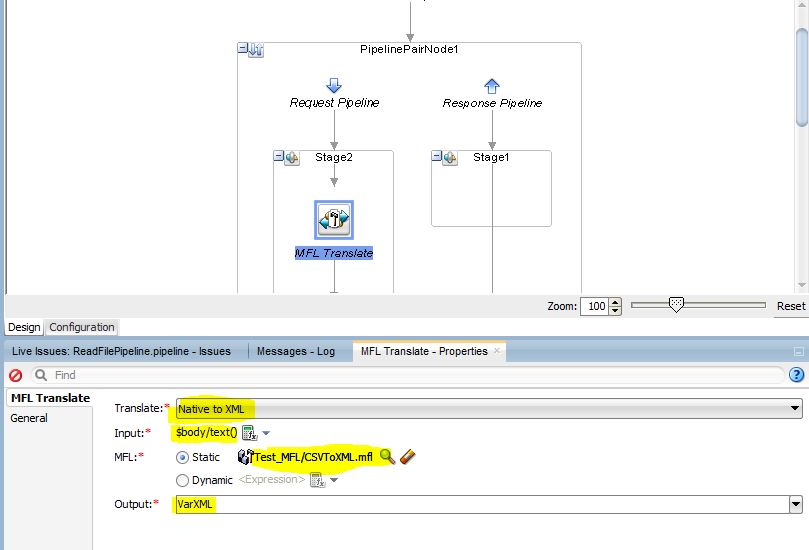
Step 8 - Now go back to Message flow, Add MFL transform Action. Specify the properties as shown.
Here MFL output is assigned to VarXML variable


Step 9 - Add replace action to put XML in Body content


Step 10  - Create Business Service to write XMl file.


Step 11 - Add Route, Browse Business Service


Thats it guys. You have completed the Service.
Now go on deploy it to server, and Test the Service

Here's the Sample output file

<?xml version="1.0" encoding="UTF-8"?>
<CSVToXML>
  <Customer>
    <customerId>CustomerID</customerId>
    <firstName>Firstname</firstName>
    <lastName>Lastname</lastName>
    <age>Age</age>
  </Customer>
  <Customer>
    <customerId>1212</customerId>
    <firstName>Dheeraj</firstName>
    <lastName>Mishra</lastName>
    <age>25</age>
  </Customer>
  <Customer>
    <customerId>3242</customerId>
    <firstName>Ajay Kumar</firstName>
    <lastName>Singh</lastName>
    <age>43</age>
  </Customer>
</CSVToXML>


Download the sample osb jar file from below link
https://drive.google.com/open?id=0BxHj0h0tnxxObDkzT2FCNUN6aEE


Thursday, 4 May 2017

Securing OSB Proxy Service using OWSM : Simple guide

Service Bus is integrated with Oracle Webservices Manager (OWSM) that provides several out of the box security policies. You can use any of these OWSM policies to secure your Proxy Services based on requirements. Here in this post, you will use oracle/wss_username_token_service_policy policy to secure Proxy Service.
Steps Summary :
1.    Create Users who needs access
2.    Add policy to Service
3.    Test and Validate

Login to Admin Console and click Security Realms in Domain Structure.


Click myrealm as shown below.


Navigate to Users by clicking on Users and Groups tab.


Click New and enter credentials as shown below.


Click OK. 
Observe that new user has been created which can be used to invoke Proxy Service.


Go to sbconsole. Create a new session. Navigate to All Projects –> <<your project>> and open the Proxy service to bring up a new tab as shown below.


Click Security and choose the option as shown below.


Click Attach Policies icon (highlighted above) and select the policy as shown below and click Attach.


Click OK and observe that selected policy is shown up as shown below.


Save your changes in current tab and activate the session.


You can use SOAPUI or SBConsole Test service for testing.
Open request editor for any of your Proxy Service operations and paste the following in SOAP header. This represents the WS-Security header and is expected by OWSM policy i.e. attached to Proxy Service.

Test using wrong credentials or without security header and observe the output showing security error.


Test using credentials created in first section and observe the output.
Add below header to your request, You can see username and password fields below.
                                                              
<soap:Header>
                <wsse:Security soapenv:mustUnderstand="1" xmlns:wsse="http://docs.oasis-open.org/wss/2004/01/oasis-200401-wss-wssecurity-secext-1.0.xsd" xmlns:wsu="http://docs.oasis-open.org/wss/2004/01/oasis-200401-wss-wssecurity-utility-1.0.xsd">
                                <wsse:UsernameToken wsu:Id="UsernameToken-F7A4A73DA710AE195C14938940405155">
                                                <wsse:Username>dheeraj</wsse:Username>
                                                <wsse:Password Type="http://docs.oasis-open.org/wss/2004/01/oasis-200401-wss-username-token-profile-1.0#PasswordText">webic123</wsse:Password>
                                                <wsse:Nonce EncodingType="http://docs.oasis-open.org/wss/2004/01/oasis-200401-wss-soap-message-security-1.0#Base64Binary">T36cJsRsgb5IzQyyy/Yskw==</wsse:Nonce>
                                                <wsu:Created>2017-05-04T10:34:00.515Z</wsu:Created>
                                </wsse:UsernameToken>
                </wsse:Security>
</soap:Header>


That’s all.


Thursday, 9 March 2017

Integration of Oracle BPM/Human Task and Oracle UCM/Web Center Content

In this post, I will describe the process of integrating the Oracle BPM/Human Task and Oracle UCM/Web Center Content. This is required to get the Attachment functionality in you BPM process or in Human Task flow.
Lets Start,
Go to Documents Tab in your Human Task flow, Enable the ‘Use Document Package’


Now, if you deploy your code,and try to add files, it will results in below error message:
 Document Store not available. Please configure the document store.


If you check your server logs, you will find some similar parts

<Error> <oracle.soa.services.common> <BEA-000000><oracle.bpel.services.workflow.repos.UCMUtil.getUCMInfo>
Error retrieving UCM information from the server.
Ensure that credential store map WF-ADMIN-USER with key WF-ADMIN-CREDENTIAL contains UCM server admin username/password.
Also ensure that Workflow configuration parameter UcmIdcUrl contains IDC socket connection url to connect to UCM server and UCM server has permission to let SOA server connect to it using IDC protocol.


You need to make sure that your SOA/WLS/UCM configuration is correct and these settings are scattered on multiple locations in Oracle Enterprise Manager.
Before we start you need to make sure you have the IDC (IntraDoc) port of your UCM installation. To verify this check your UCM configuration file: %domainhome%/ucm/cs/config/config.cfg
Most likely this will be 4444.

STEP 1 :
Right-click soa-infra -> SOA Administration -> Workflow config -> “More Workflow Notification Configuration Properties” -> workflow config -> human-workflow.
Make sure the setting UcmIdcUrl is configured correctly to contain the UCM-server hostname and IDC port.


STEP 2:
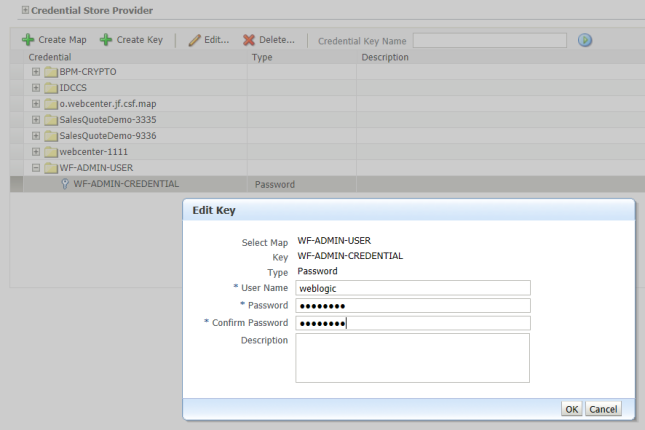
configure the username and password the BPM/SOA engine will use to connect to the UCM server which is located in the Weblogic section of EM. So rightclick on your domain in Weblogic Domain -> yourdomain -> Security -> Credentials.


STEP 3:
Create a new Map WF-ADMIN-USER and in that map create a new Key WF-ADMIN-CREDENTIAL


STEP 4 :
make sure the UCM server will accept our connection, so right click the Oracle Universal Content Management server in the WebCenter section of your Enterprise Manager. Make sure the Intradoc (IDC) serverport is correct and that the IP filter contains the SOA/BPM server hostname.


Save, restart if needed and check your Workspace Manager again for your attachments.

That’s’s all, Now you can attach files to your BPM or Human task flows.


You can see the attached file in your flow


If you have configured for the Notificatons in your Human task or BPM process, The attachments can be sent alongwith Notifications.


Will describe about the BPM Notifications in my next post.