Wednesday, 17 February 2016

Oracle SOA Suite 12c - SOA Domain Configuration part 2

This post is in continuation with my previous post, about SOA domain creation. You can find part 1 at 


http://osb-dheeraj.blogspot.in/2016/02/oracle-soa-suite-12c-soa-domain.html


Lets Continue with the steps of domain creation:


Step 9:
Fill the DB Schema details for each of the Datasource by selecting each one by one
Once all filled, Click on Next button


Step 10:
The Wizard will test each connection, if you have given correct information, then all connection will show success as below, Then Click Next


Step 11:
Click Next on the Screen,


Step 12:
On this screen select the elements, which you want to configure for your domain. For example select Admin server and Manage Server then click on Next, as shown


Step 13:
Provide Server port Number, Host Address, and SSL port, You can keep the default setting as well. Then Click Next


Step 14:
For Managed Server, Provide Name, Port, SSL Port, or keep the default settings.


Step 15:
Since we have only one Managed server, hence we do not need cluster, Click Next


Step 16:
Click next for Coherence and Coherence Cluster Screen. Click on + button to add Machine, Provide details of your machine


Step 17:
Then look the Summary of your configuration and Click Create


Step 18:
It will take some time to create the domain. The last will be the confirmation screen.


Voila, you have successfully created your SOA Domain.


In case you want to configure OSB Doamin, refer my previous post:

Oracle SOA Suite 12c - OSB Domain Configuration

http://osb-dheeraj.blogspot.in/2016/02/oracle-soa-suite-12c-osb-domain.html


Invoke Web service hosted at Oracle Integration Cloud Service (ICS) using SOAPUI - Part 2

This post is in continuation with my previous post, you can find the part 1 here
http://osb-dheeraj.blogspot.in/2016/02/invoke-web-service-hosted-at-oracle.html


Let's continue with steps


Step 5:
This will open a new Pop up, Select Basic, then click on OK.


Step 6:
Provide your Username and Password.


Step 7:
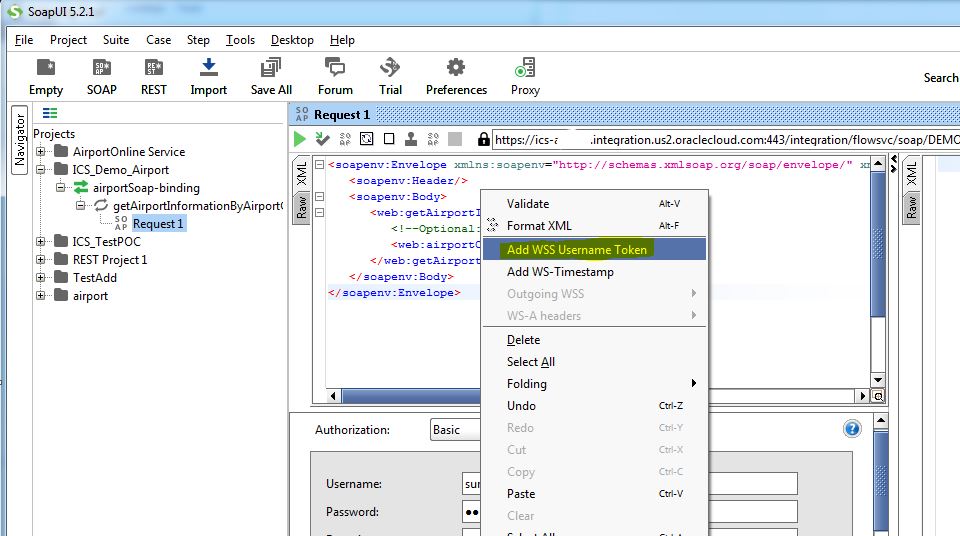
Now Right Click on the Request tab. You will see a window similar to below. Select 'Add WSS Username Token'


Step 8:
Select 'Password Text' and Click OK. This will add a Security Header in your Request.


Step 9:
Now again Right Click on Request Tab. Then Select "Add WS-Timestamp"


Step 10:
Select 60 in new pop up window Then click Ok. 
This will Add Timestamp to your request


Step 11:
Now click on Test button, to execute the request. This button is highlighted in yellow 


Step 12:
Thats all, you will receive the response from your ICS service


Congrats !, You have successfully invoked Web service hosted at Oracle ICS


For More Integrations and Design patterns, Please refer to My Other posts on ICS webservice integrations

1. Integration using Oracle ICS - Source ( Webservice ) to Target (Webservice)

http://osb-dheeraj.blogspot.in/2016/02/integration-using-oracle-ics-source.html

2. Oracle Integration Cloud Service (ICS) - Monitoring and Tracking Messages & Errors

http://osb-dheeraj.blogspot.in/2016/02/oracle-integration-cloud-service-ics_10.html

3. Oracle Integration Cloud Service (ICS)

http://osb-dheeraj.blogspot.in/2016/02/oracle-integration-cloud-service-ics.html